
How to Create
Dotted or Dashed Lines in After Effects
Three easy methods for creating dotted or dashed lines in After Effects — Shape Layer Dashes, Round Cap dots, and animated Trim Paths — with every setting explained in straightforward workflows.
To create dotted or dashed lines in After Effects, draw a path with the Pen Tool (with the fill set to none), then open Contents → Shape 1 → Stroke 1 and click + next to Dashes. For rectangular dashes, set Dash and Gap above 0. For true circular dots, set Dash to 0 and Line Cap to Round Cap — a zero-length dash with a round cap renders as a perfect circle. To make the line draw itself on screen, add Trim Paths and keyframe End from 0% to 100%.
- Set the fill to None in the toolbar before you draw
- Draw the path — Pen Tool (
G) with no layer selected - Open the stroke —
Contents → Shape 1 → Stroke 1, set colour and width - Add dashes — click + beside Dashes, then + again to add a Gap
- Dashed: Dash 20 · Gap 12 · Butt Cap | Dotted: Dash 0 · Gap 16 · Round Cap
- Animate —
Add → Trim Paths, keyframe End 0% → 100%, thenF9to ease
Dotted or dashed lines in After Effects sound like a small detail — but in motion graphics they show up everywhere. Animated travel routes on a map. Dotted outlines drawing on around a product in an ad. Rhythm lines pulsing through a music visualizer. All of them come down to the same three controls hidden inside After Effects' Shape Layer stroke settings: Dash, Gap, and Line Cap.
Like many After Effects users, I think the program hides this feature. There is no "Dashed Line" button in the toolbar, so you have to know where to look. This guide shows you where, walks through every setting that matters, and covers how to animate the result with Trim Paths so the line draws itself on screen.
What You'll Need
I used After Effects CC 2025 (v25.6) for this tutorial, but the workflow works in CC 2022 and all later versions. The Shape Layer dash controls have been available since CS6, though the interface was improved in later CC releases.
After Effects CC 2022 or later · A new or existing composition · No third-party plugins required — everything covered here uses only built-in After Effects tools. If you'd rather reverse-engineer a finished project file, Motion Array's After Effects template library ships hundreds of animated line and map-route comps.
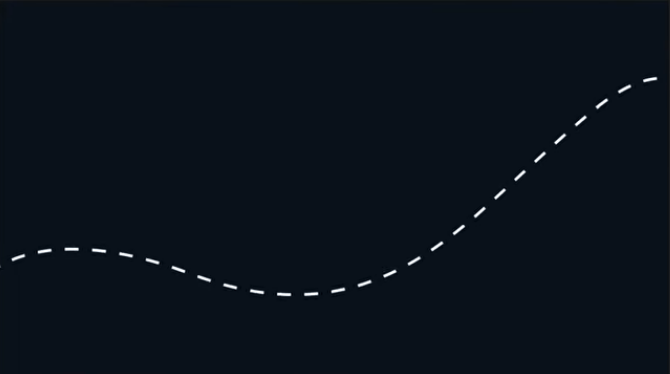
Dotted or dashed lines in After Effects are built entirely from Shape Layer stroke settings — no plugins required.
Create a Dashed Line via Shape Layer Stroke
This is the foundational method. Everything else in this tutorial builds on these steps. One important thing to note that: dashes are a property of a Shape Layer's Stroke, not a separate layer or effect. Once you know where to find the Dashes panel, the rest takes less than two minutes.
Go to Composition → New Composition. Set your resolution (1920×1080 is standard), frame rate (24 or 30 fps) and duration, then click OK.
With nothing selected in the timeline, click the Fill swatch in the toolbar and choose the None option. A straight two-point line has no area to fill, so a fill won't show on it. It does matter on curves and closed shapes, where it can cover your stroke.
Press G, then click a start point and an end point. Hold Shift while clicking to lock the line to horizontal, vertical or 45°. Make sure no layer is selected in the timeline. If one is, After Effects draws a mask instead of a shape, and masks can't take dashes.
Expand the new shape layer to Contents → Shape 1 → Stroke 1. Click the color swatch to pick your color, and set Stroke Width to 4–8 px to start.
Inside Stroke 1, find Dashes and click the + beside it. A Dash value appears, and the line now shows dashes.
Click + a second time to add a Gap. Dash is the length of each dash and Gap is the space between them. Start with Dash 20 and Gap 12, then adjust by eye. Each extra click on + adds another Dash and Gap pair, and the pattern repeats in order, so a long dash, a gap, a short dash, a gap gives you a dash-dot line. Leave Line Cap on Butt Cap for clean rectangular dashes.
Offset slides the whole dash pattern along the stroke. To keep it moving, Alt-click (Option-click on Mac) the Offset stopwatch and type time*60. The dashes travel 60 units per second, and a negative number reverses the direction. This gives you the marching-ants look without using Trim Paths.
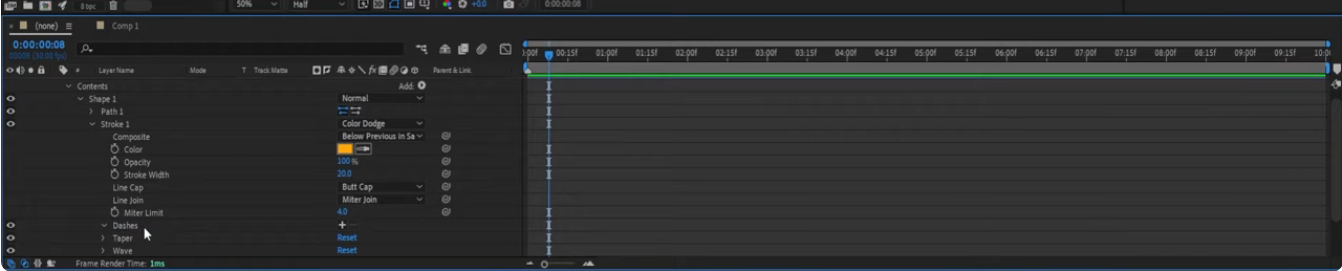
The Line Cap option inside Stroke 1 controls how dash ends are rendered. Butt Cap gives you sharp rectangular dashes. Round Cap rounds the ends and is used to make true dotted circles (covered in Method 2) — the same behaviour the SVG spec defines, where a round cap on a zero-length path renders as a full circle. Projecting Cap extends the dash length slightly beyond each end — useful for stylised hand-drawn looks.
Create a Dotted Line with Round Cap
A true dotted line — with perfect circles rather than rectangles — requires one additional change from the dashed line setup: set Dash to 0 and Line Cap to Round Cap. When the dash length is 0 and the cap is round, After Effects renders each dash as a perfect circle with a diameter equal to the Stroke Width.
Set up your Shape Layer with the fill set to none, open Stroke 1, and click + to add the first Dash property as described above.
This is the key difference. In the Dashes section, set Dash = 0. With a zero-length dash, After Effects collapses each dash into a point — which, when combined with Round Cap, becomes a perfect circle.
Inside Stroke 1, find Line Cap and change it from Butt Cap to Round Cap. Do this before you judge the result. A zero-length dash with a Butt Cap draws nothing, so the line looks like it disappeared.
Click + to add a Gap value. This controls the distance between dots. Smaller Gap = dots closer together. Increase stroke width to make larger dots — the dot diameter always equals the stroke width.

Animate Your Dashed Lines with Trim Paths
A static dashed line is useful. An animated dashed line that draws itself onto the screen — used for map routes, infographic connectors, hand-drawn reveals — is what makes motion graphics genuinely come alive.
Trim Paths is the After Effects tool that controls which portion of a path is visible at any moment. Keyframing the End value from 0% to 100% makes the line appear to draw itself from left to right. Adobe files it alongside the other path operations for shape layers, which is why it lives under the Add menu rather than the Effects panel.
Make sure you have a Shape Layer with a Stroke, no Fill, and your Dash/Gap values set from Method 1 or Method 2.
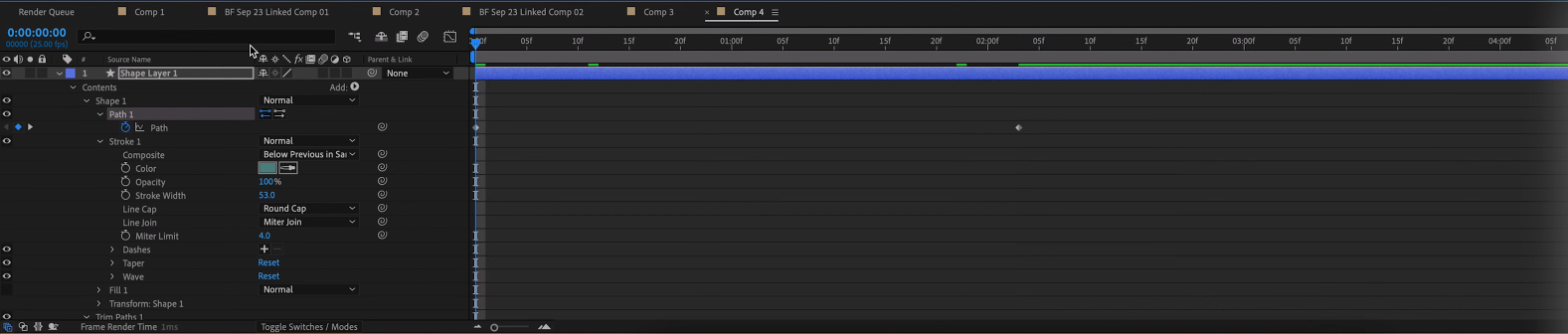
Select the Shape Layer. In the timeline, expand Contents. Click the Add button (the arrow/plus icon to the right of Contents) and choose Trim Paths from the dropdown.
Expand Contents → Trim Paths 1. At frame 0, click the stopwatch next to End and set it to 0%. Move to your end frame (e.g., frame 60) and set End to 100%. The line now draws itself from start to end over that duration.
Select both keyframes, right-click, and choose Keyframe Assistant → Easy Ease. This adds acceleration and deceleration, making the animation feel natural rather than robotic. Press F9 as a shortcut.
Press Shift + F3 to open the Graph Editor. Pull the handles for a custom easing curve — a slow start followed by a faster reveal often looks best for map route animations.
Animate End for a draw-on. Animating Start as well erases the tail, but it moves the trimmed start point, and the dash pattern can crawl along the line. If that happens, use the Track Matte fix in the troubleshooting section.
Which Method Should You Use?
All three methods share the same stroke setup. Pick the one that matches the look you want and whether the line needs to animate.
| Goal | Method | Key settings | Best for |
|---|---|---|---|
| Rectangular dashes | Method 1 | Dash > 0, Gap > 0, Butt Cap | Motion paths, infographic connectors, borders |
| Perfect circle dots | Method 2 | Dash = 0, Gap ≥ Stroke Width, Round Cap | Stylised map routes, decorative dots, timelines |
| Animated draw-on | Method 3 | + Trim Paths, keyframe End 0→100% | Reveals, map routes, animated arrows, connectors |
Troubleshooting Dotted or Dashed Lines in After Effects
I clicked + but no dashes appear
Check that no fill is covering the stroke. This mostly affects curves and closed shapes, where a filled shape on top can hide the dashes.
If you drew your line with a layer already selected, you may have created a mask instead of a Shape Layer. Check the timeline — a mask will show under the layer's Masks section, not Contents. Delete it and redraw with no layer selected.
The dashes crawl or jump while the line animates
This usually shows up when you animate Trim Paths Start, because the dash pattern is laid out from the trimmed start point and appears to crawl along the line. Animate only End where you can.
To erase the tail without the crawl, duplicate the shape layer, remove the dashes from the duplicate, place it directly above the dashed layer, and animate Trim Paths on the duplicate. Then set the dashed layer's Track Matte to Alpha Matte using the duplicate. The dashed layer itself stays untrimmed.
My dotted line looks blurry or jagged on export
Usually caused by one of two issues: (1) Composition resolution is too low — render at 1920×1080 minimum for clean strokes. (2) The shape layer has been scaled up from a smaller original — never scale a shape layer with dashes; instead, redraw at the size you need.
If the footage underneath your dashed overlay is also soft, that's a separate problem — scaling inside After Effects won't fix it. See our comparison of upscaling footage vs scaling in After Effects, if you need a dedicated upscaler in the pipeline.
I want dashes but I'm working with a mask path, not a shape layer
Mask paths do not support stroke dashes directly. You need to convert the mask to a Shape Layer path first. Select the layer with the mask, then copy the mask path and paste it into a Shape Layer's Path property. Once on a Shape Layer, all the Stroke Dash controls become available. Adobe covers the differences between the two path types in its guide to managing and animating shape paths and masks.
G — Pen Tool ·
V — Selection Tool ·
U — Reveal keyframed properties ·
F9 — Easy Ease selected keyframes ·
Shift + F3 — Open Graph Editor ·
Spacebar — Preview playback
Adobe publishes the full After Effects shortcut reference if you want the printable version.
Dotted or Dashed Lines in After Effects — Final Recap
What Works Well
- No plugins required — fully native to After Effects
- Dashes follow any path shape automatically — straight, curved, or complex
- Fully animatable — every Dash, Gap, Offset value can be keyframed
- Round Cap gives perfect circles with Dash = 0
- Works with Trim Paths for clean draw-on animations
- Offset animation creates marching-ants effect with zero extra effort
- Can be combined with Layer Styles for glow, neon, and shadow effects
Limitations to Know
- Mask paths cannot use Stroke Dashes — must convert to Shape Layer
- Trim Paths animate-off requires Alpha Matte workaround to look right
- Complex dash patterns (dash-dot-dash) require multiple + clicks to set up
- No live preview in the Dashes panel — must watch comp to see changes
- Scaling shape layers can cause rendering artefacts — redraw at target size instead
Once the animation is timed, the last thing a line reveal usually needs is sound — a rising swell or a soft tick as each dash lands. Our breakdown of Epidemic Sound vs Artlist covers which library licenses best for commercial motion graphics work.

Hi there! I’m Titto, the creative mind behind FreemiumVisuals. As a designer come digital artist with 10 years of experience, I’ve always been obsessed with creating high-quality visuals.
This blog is my passion project to help creators like you master tools, hacks, and resources that blend affordability with professional results. Whether you’re a hobbyist or a freelance editor, you can utilize this website as your one-stop destination for the latest AI design tool reviews and software tutorials.
Let’s Connect!
📧 Email: [contact@freemiumvisuals.com]
Got a question or idea? Drop a comment on my latest post!